The Radiology Order Workflow
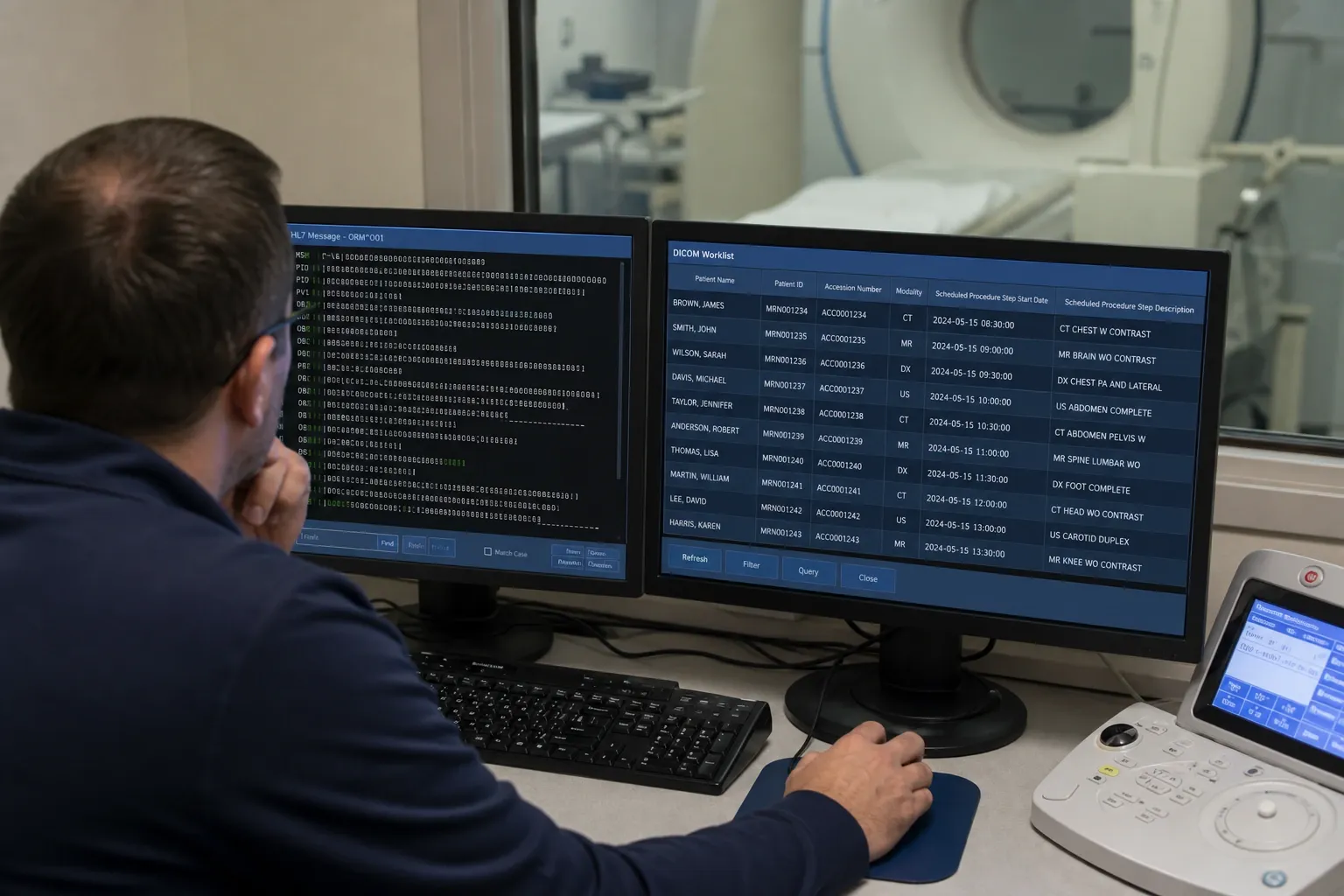
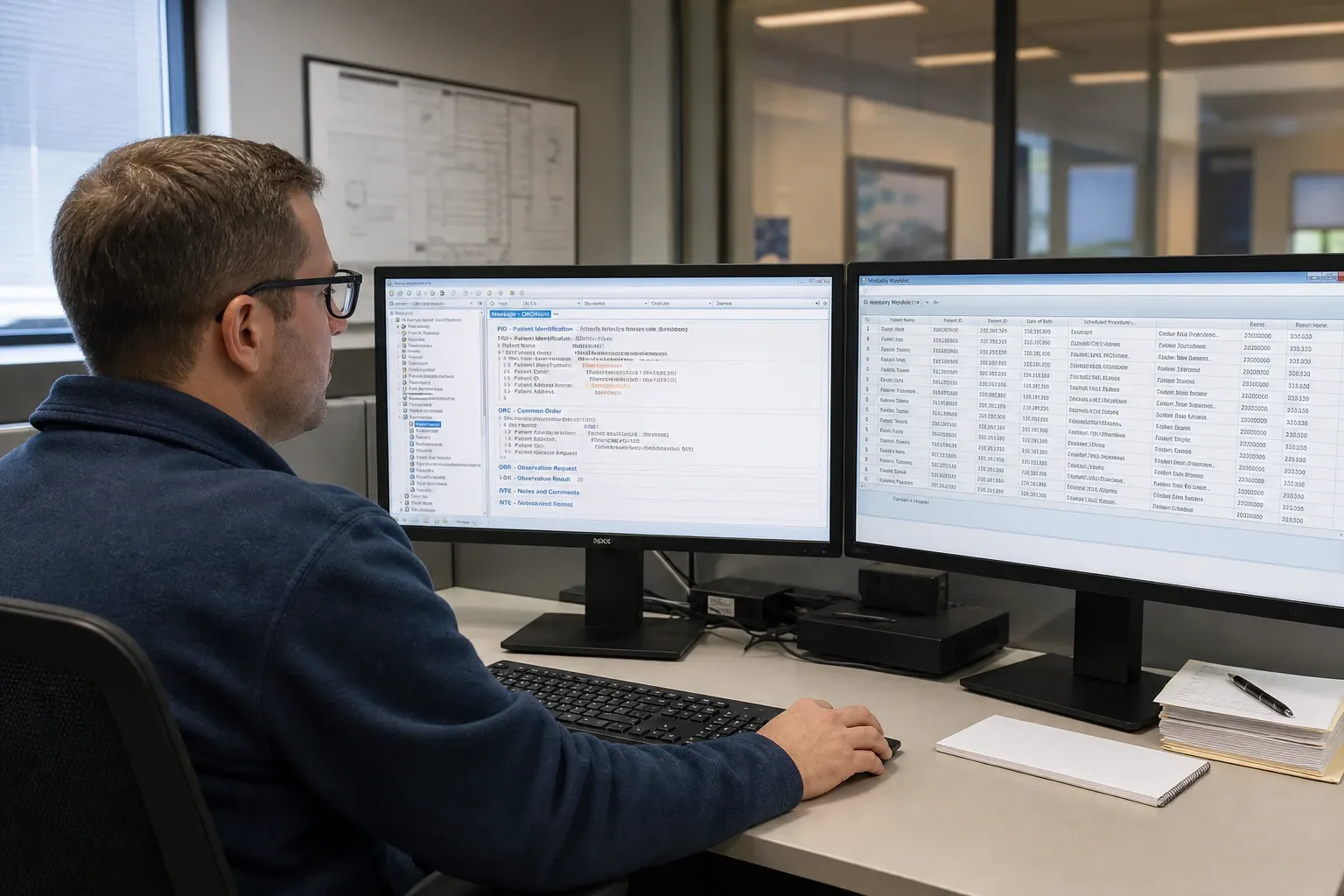
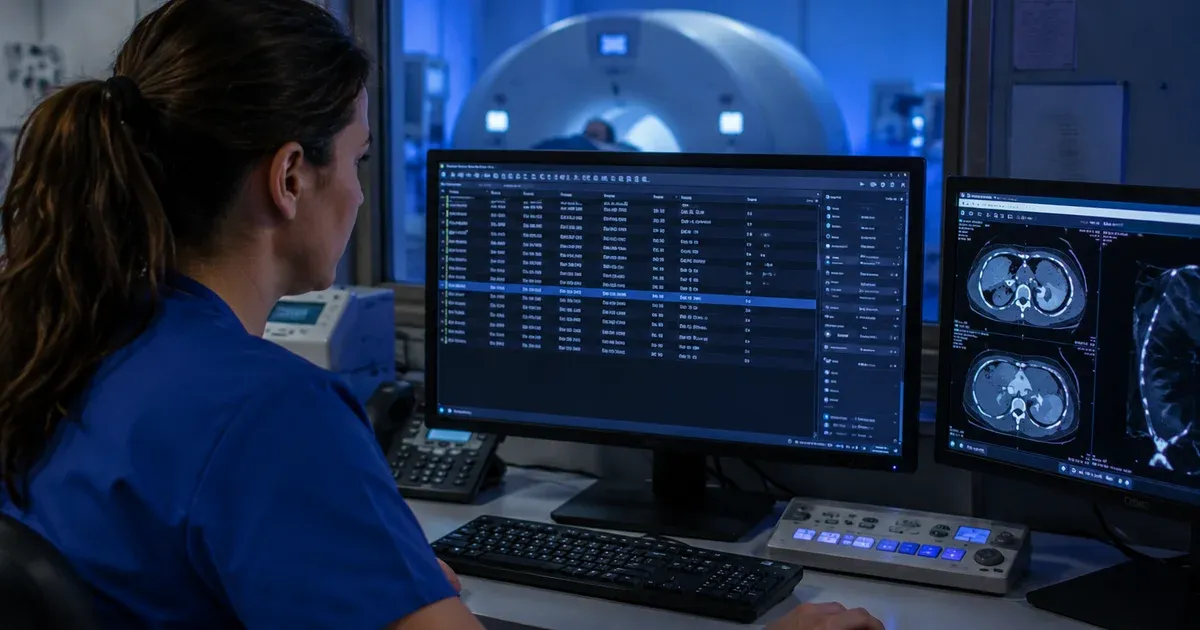
When a physician orders a radiology exam — a CT scan, MRI, X-ray, or ultrasound — the order originates in the Electronic Health Record (EHR) system and must travel through several systems before the patient reaches the scanner. The HL7 ORM^O01 message is the standard transaction that carries this order from the EHR to the Radiology Information System (RIS). The RIS, in turn, populates the DICOM Modality Worklist (MWL), which the imaging modality queries to retrieve patient and exam information. Understanding this chain — EHR → HL7 ORM → RIS → DICOM MWL → Modality — is fundamental for anyone working in healthcare imaging integration.
Anatomy of an ORM^O01 Message
An HL7 ORM^O01 (Order Message) contains several key segments that carry the data needed to build a worklist entry:
- MSH (Message Header): Identifies the sending and receiving applications, message type (ORM^O01), timestamp, and HL7 version.
- PID (Patient Identification): Contains the patient's MRN (PID-3), name (PID-5), date of birth (PID-7), and sex (PID-8). These map directly to DICOM Patient ID, Patient Name, Birth Date, and Sex tags.
- PV1 (Patient Visit): Carries patient class (inpatient, outpatient, emergency), location (PV1-3), attending doctor (PV1-7), and referring physician (PV1-8).
- ORC (Common Order): Contains the order control code (ORC-1: NW for new, CA for cancel, XO for change), placer order number (ORC-2), and ordering provider (ORC-12).
- OBR (Observation Request): The core segment for radiology orders. OBR-4 carries the procedure code and description, OBR-16 the ordering physician, OBR-18 the accession number (critical for DICOM study linkage), and OBR-27 the scheduled date/time and priority.
The HL7-to-DICOM Mapping
The RIS transforms HL7 ORM data into DICOM Modality Worklist attributes. Key mappings include:
- PID-3 → (0010,0020) Patient ID: The MRN becomes the DICOM Patient ID, used by the modality to associate the study with the correct patient record.
- PID-5 → (0010,0010) Patient's Name: HL7 XPN format (Family^Given^Middle) maps to the DICOM PN (Person Name) value representation.
- OBR-18 → (0008,0050) Accession Number: This is the critical linkage field. The accession number assigned by the RIS uniquely identifies the order and must match between the worklist entry and the acquired DICOM images. Mismatches cause "orphaned studies" that appear in PACS without correct order linkage.
- OBR-4 → (0032,1060) Requested Procedure Description: The human-readable exam description (e.g., "CT Abdomen with Contrast") populates the worklist entry the technologist sees on the modality screen.
- OBR-27 → (0040,0002) Scheduled Procedure Step Start Date: The scheduled date/time tells the modality when the exam is expected, enabling worklist filtering by time window.
Common Integration Problems
Most radiology worklist integration issues stem from a small set of recurring data quality problems. Missing accession numbers (OBR-18 empty) mean the RIS cannot generate the DICOM Accession Number tag, leading to studies that cannot be linked to orders. Empty or incorrect procedure codes (OBR-4) result in worklist entries with no exam description, forcing technologists to manually select the protocol. Inconsistent patient IDs between the EHR and RIS cause patient matching failures. And priority encoding differences — some systems use "S" for Stat while others spell out "STAT" in the TQ data type — can lead to urgent studies not being flagged correctly on the modality worklist.
Using This Tool for Interface Analysis
This Radiology Worklist Viewer helps integration analysts and clinical engineers validate the end-to-end data flow by parsing raw ORM messages and showing exactly how the HL7 fields would map to DICOM MWL attributes. By pasting production ORM captures (with PHI safely staying in the browser), teams can verify that accession numbers are present, procedure codes are correctly encoded, patient demographics match, and priorities are properly extracted — catching issues before they cause failed worklist queries or orphaned studies in production PACS systems.
Three Interface Analyst Workflows
A RIS analyst preparing for a new modality connection pastes a batch of synthetic ORM^O01 orders captured from a test interface engine and reviews the worklist table for gaps before the modality ever queries anything — an empty accession number or a blank procedure code shows up immediately as a validation warning, catching the exact defect that would otherwise surface only as an orphaned study after acquisition.
A clinical engineer troubleshooting a "study not found" complaint from a technologist pastes the synthetic order in question and opens Show Details to see the full HL7-to-DICOM mapping side by side — confirming whether the accession number the RIS assigned in OBR-18 actually matches what the modality is expected to receive as (0008,0050), which is the single most common cause of that complaint.
A third scenario is a priority-encoding audit across sending systems. Pasting a mixed batch of synthetic orders from two different order sources and filtering to Stat reveals whether both systems encode urgency the same way in OBR-27/OBR-5 — a mismatch here is how a genuinely urgent exam quietly loses its Stat flag on the worklist.
When Not to Use This Tool
This is a local, offline message-to-table transform, not a live connection to a DICOM Modality Worklist service. It does not perform a DICOM C-FIND query against a real MWL SCP, and it does not talk to a RIS, PACS, or modality over any network protocol — it only shows what the HL7-to-DICOM mapping of a pasted message would look like. It is also scoped to ORM^O01 order messages; it does not process the ORU results that eventually come back, or MDM/SIU messages elsewhere in the radiology workflow. For validating an actual live worklist query against a modality, you need a DICOM conformance testing tool connected to the real MWL SCP, not this viewer.
HL7 Field → DICOM MWL Tag, in Brief
A condensed view of the mappings this tool displays in full detail for every parsed order:
| HL7 field | DICOM MWL tag | Why it matters |
|---|
| PID-3 | (0010,0020) Patient ID | Links the study to the correct patient record |
| PID-5 | (0010,0010) Patient's Name | Displayed on the modality console during acquisition |
| OBR-18 | (0008,0050) Accession Number | The critical linkage field between order and acquired study |
| OBR-4 | (0032,1060) Requested Procedure Description | Human-readable exam name shown to the technologist |
| OBR-27 | (0040,0002) Scheduled Procedure Step Start Date | Lets the modality filter its worklist by time window |
This mapping pattern follows the IHE Radiology Scheduled Workflow profile's general RIS-to-MWL transformation, referenced in the sources below.
Working Alongside Other HL7 Tools
Before trusting a worklist mapping, it helps to see the raw order in full. Paste the same synthetic ORM^O01 into the HL7 Viewer to inspect every segment and field with structural validation, and use the HL7 to JSON converter if the order data needs to feed a script or a non-HL7 system downstream. Reading the message first, then mapping it here, keeps the DICOM field mapping honest about what the source order actually contained.