What Is DICOM Pixel Data?
The DICOM standard stores medical images as raw pixel arrays embedded within the file's binary structure. Tag (7FE0,0010) — Pixel Data — contains the actual image values. Unlike consumer image formats (JPEG, PNG), DICOM pixel data carries clinical metadata: bit depth, signed/unsigned representation, photometric interpretation, and windowing parameters that define how raw values should be mapped to visible brightness levels.
Photometric Interpretation
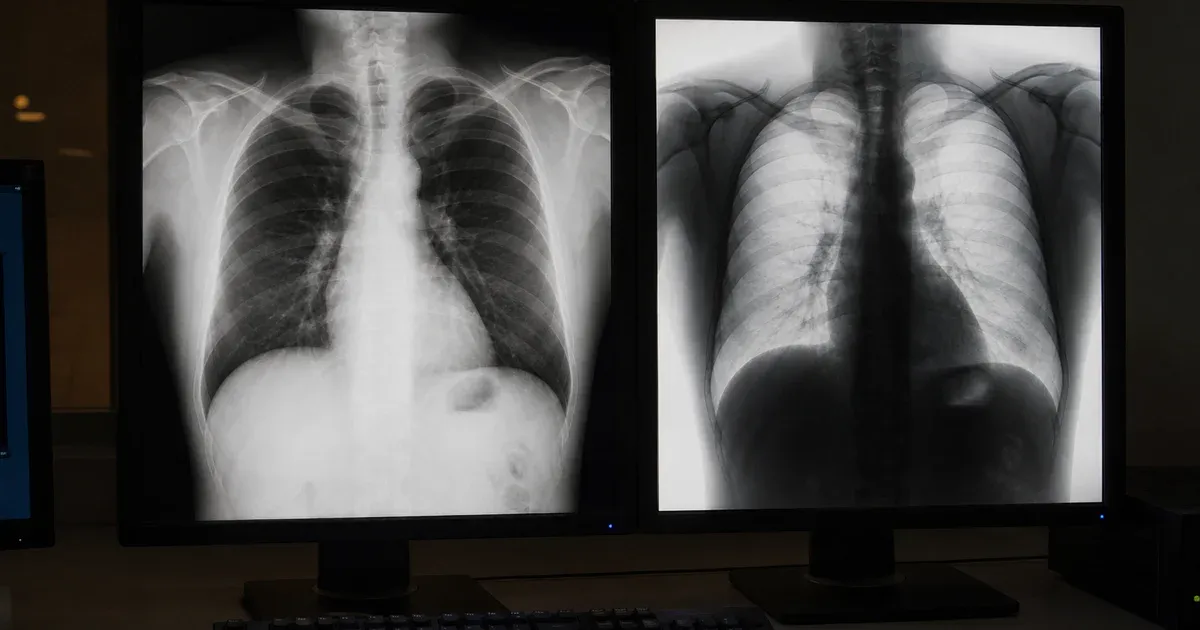
The Photometric Interpretation tag (0028,0004) tells the viewer how to interpret pixel values. MONOCHROME2 is the most common: higher values appear brighter (white). MONOCHROME1 inverts this convention — higher values appear darker — and is used in some older CR and digitized film formats. RGB images store three samples per pixel (red, green, blue) and are common in dermatology photos, pathology slides, and visible-light endoscopy captures.
Windowing: Window Center and Window Width
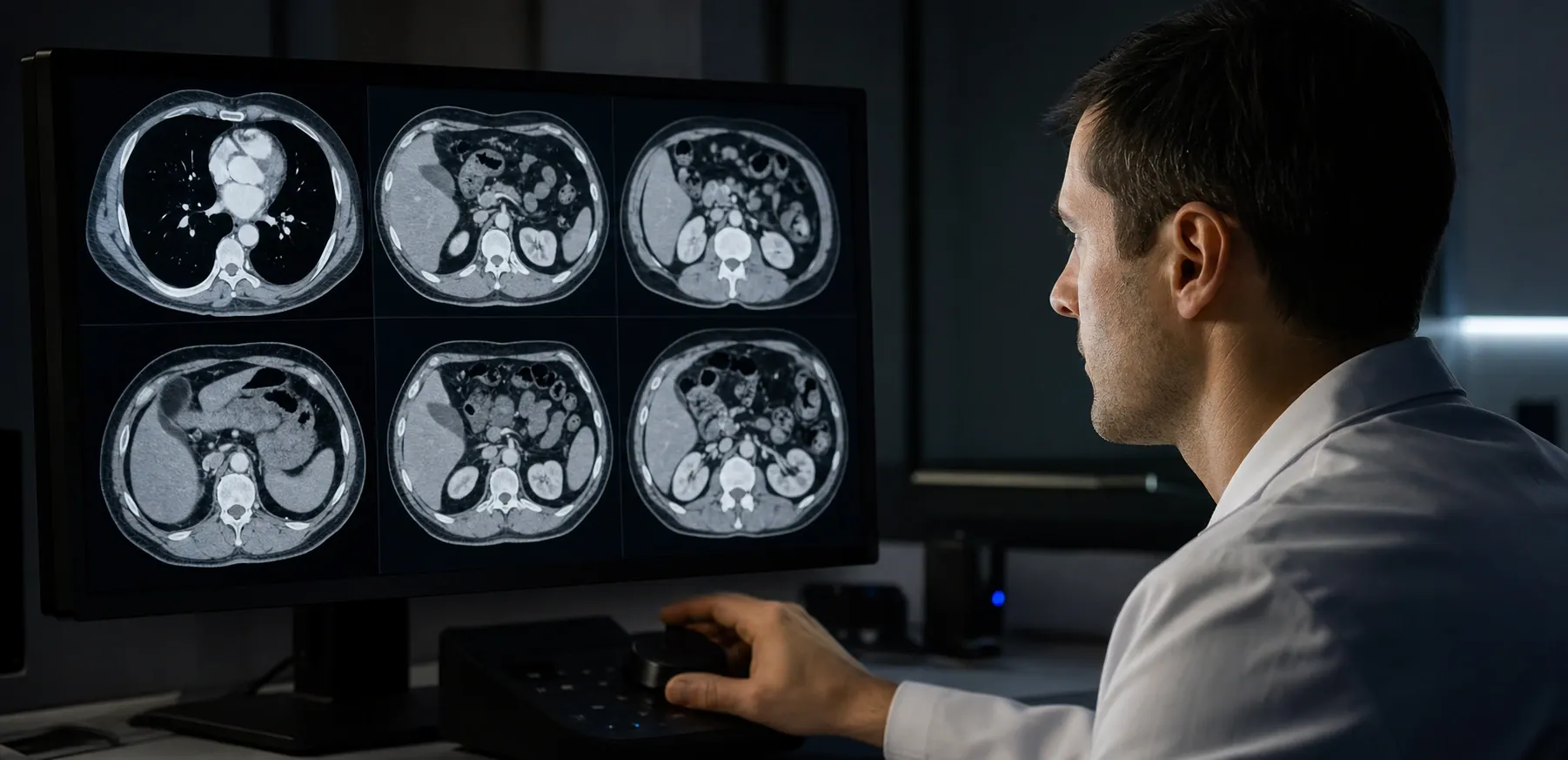
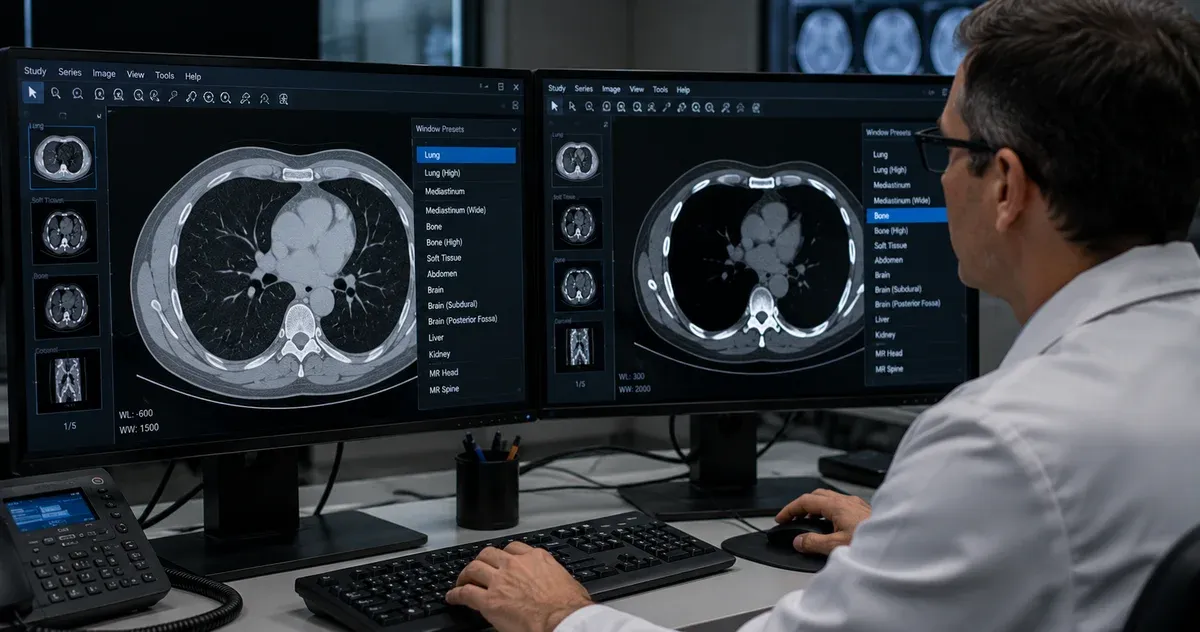
Medical images typically use 12-bit or 16-bit depth, providing 4,096 or 65,536 possible gray levels — far more than the 256 levels a standard display can show. Windowing (also called window/level) maps a selected range of pixel values to the display's 0–255 range. The Window Center (WC) defines the midpoint of the visible range, and the Window Width (WW) defines how wide the range is. For example, a standard lung CT window uses WC = -600, WW = 1500, which makes air appear black and soft tissue mid-gray. A bone window (WC = 300, WW = 1500) shifts the center upward to highlight dense structures.
Transfer Syntaxes: Uncompressed vs. Encapsulated
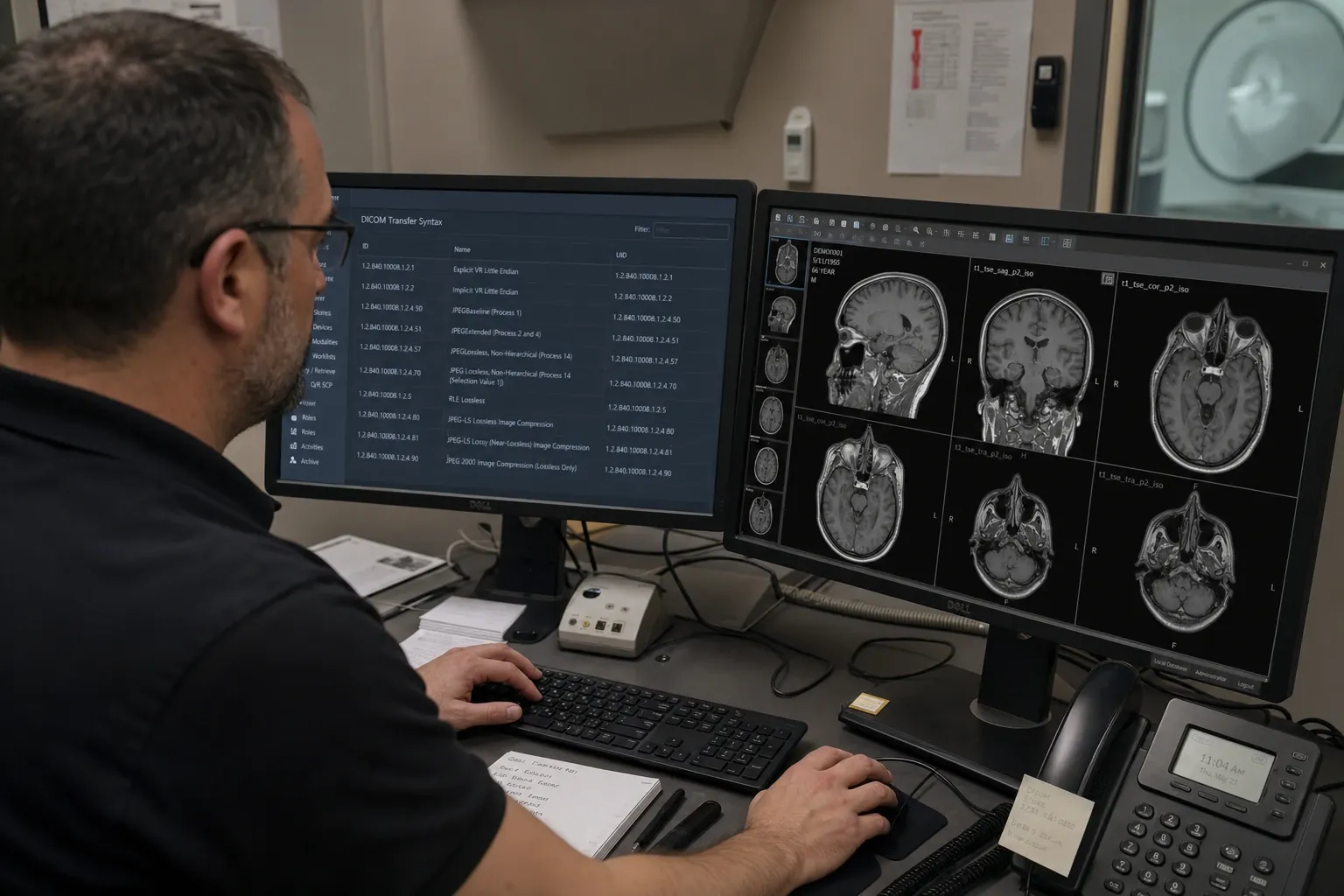
DICOM supports multiple transfer syntaxes that define how pixel data is encoded. Uncompressed syntaxes (Implicit VR Little Endian, Explicit VR Little Endian) store raw pixel arrays that can be read directly into memory. Encapsulated syntaxes wrap the pixel data in JPEG, JPEG 2000, or JPEG-LS compression frames. When rendering encapsulated images, the viewer must extract individual frame fragments and decode them using the browser's native image decoder before displaying the result on canvas.
Multi-Frame Images and Cine Loops
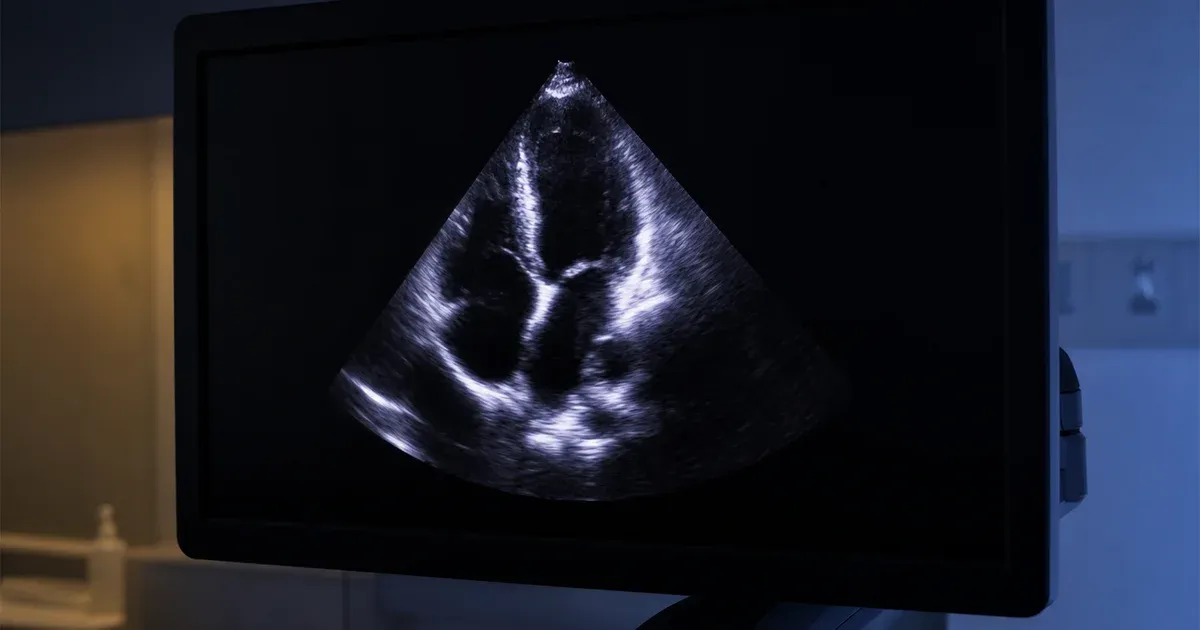
Some DICOM objects contain multiple frames within a single file — cardiac cine MRI, nuclear medicine studies, and enhanced CT/MR objects. The Number of Frames tag (0028,0008) indicates how many frames exist. For uncompressed data, each frame's byte offset is calculated from the image dimensions and bit depth. For encapsulated data, each JPEG fragment typically represents one frame. Frame navigation lets clinicians scroll through slices or play back temporal sequences.
Bit Depth and Clinical Windows
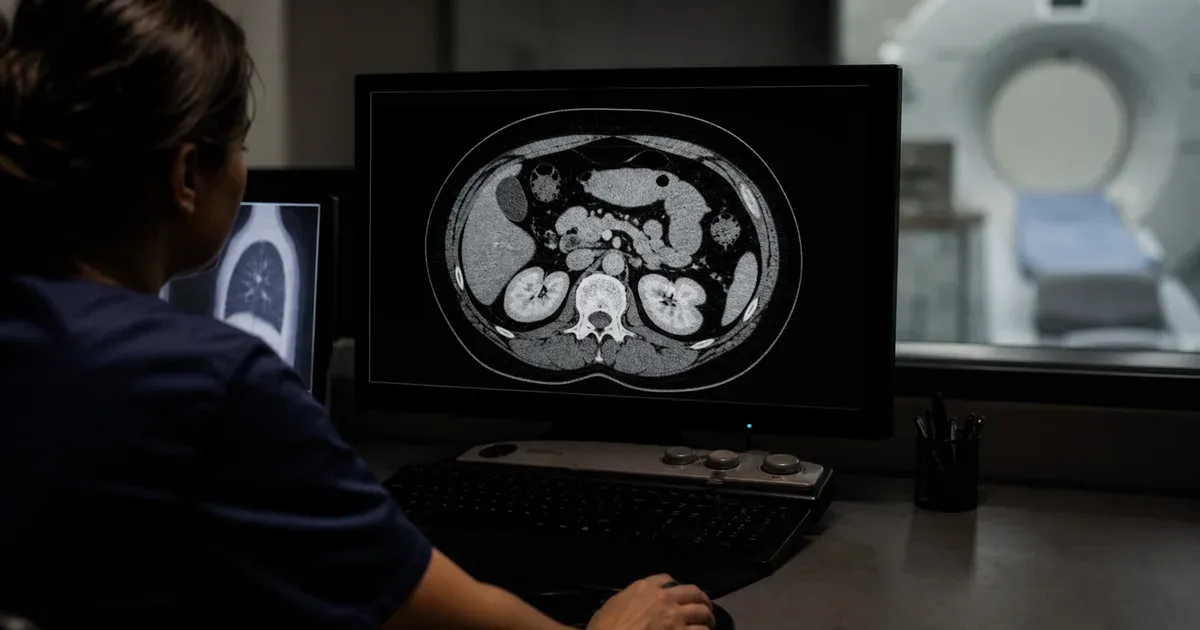
The bit depth of a DICOM image determines its dynamic range. 8-bit images (common in ultrasound secondary captures) offer 256 gray levels, while 12-bit CT images provide 4,096 levels and 16-bit PET scans offer up to 65,536. Higher bit depth means more windowing flexibility — a 12-bit CT can be windowed to show lung parenchyma (WC = -600, WW = 1500), soft tissue (WC = 40, WW = 400), or bone (WC = 300, WW = 1500), each revealing different clinical information from the same raw data.
When the Pixel Representation tag indicates signed data, the renderer must use two's complement arithmetic. CT images in Hounsfield Units are typically signed, with air at approximately -1000 HU and water at 0 HU. Incorrectly treating signed values as unsigned is a common source of rendering artifacts in naive implementations.
Browser-Based Rendering vs. Desktop PACS
Traditional PACS workstations use dedicated GPU hardware and compiled C++ code for real-time rendering. Browser-based viewers use JavaScript and HTML5 Canvas, which introduces some overhead but offers significant advantages: zero installation, cross-platform compatibility, and inherent data isolation (pixel data never leaves the browser). For review, education, and integration testing, browser-based rendering is more than sufficient. Modern browsers handle multi-megapixel 16-bit images with minimal latency thanks to TypedArrays and hardware-accelerated canvas compositing.
The key privacy advantage of client-side rendering is that DICOM files never leave the user's device. There is no upload step, no server-side processing, and no temporary cloud storage. This makes browser-based viewers suitable for environments where data governance policies restrict the transfer of medical images to external services, and eliminates the need for Business Associate Agreements with viewer providers.
That said, image viewing for engineering and research validation is not the same as diagnostic interpretation. A browser viewer is excellent for checking whether frames decode correctly, whether window defaults are reasonable, whether compression was preserved during migration, and whether image orientation matches expectations. It is not a substitute for calibrated displays, hanging protocols, or certified workstation software used in clinical reading rooms. Keeping that distinction explicit helps compliance teams approve the right tool for the right task.
In practice, many imaging teams use a lightweight viewer as the first stop in a troubleshooting chain. If a transferred study looks suspicious, they can immediately test whether the issue is in the source DICOM object, the transfer syntax, or the downstream PACS rendering stack. Pairing image review with metadata inspection creates a faster root-cause workflow: confirm the image pixels render, verify photometric interpretation and transfer syntax tags, then compare the instance against a known-good reference. That combination is particularly effective during archive migrations and modality acceptance testing.
Three Practical Viewing Workflows
A clinical engineer verifying a PACS migration loads a synthetic pre- and post-migration copy of the same study as two tabs, switches between them, and confirms the windowing defaults and photometric interpretation render identically — a fast visual check that complements a tag-level comparison rather than replacing it.
A researcher reviewing a synthetic multi-frame cardiac cine series steps through frames with the arrow keys to confirm the sequence plays back in the right order and that no frame is corrupted or blank, before the series is included in a dataset.
A modality acceptance tester checking a new scanner's output loads a synthetic test image straight from the device, inverts it, adjusts the window to a known clinical preset (lung, bone, soft tissue), and confirms the rendering matches what the vendor's own workstation shows for the same file — a quick way to catch a photometric interpretation or bit-depth mismatch before the modality goes live.
When Not to Use This Tool
This viewer is built for review, education, and integration testing — not clinical diagnosis, and not a certified medical device. Its windowing is exact only for uncompressed pixel data; for encapsulated JPEG/JPEG2000 frames, the browser's own image decoder renders the frame and windowing becomes an approximate brightness/contrast filter rather than true VOI LUT math, so a compressed study should be treated as a visual preview, not a pixel-accurate re-render. It also has no defined behavior for every NEMA-registered transfer syntax (such as JPEG-LS or RLE) — correctness for an unusual compression depends entirely on whether the browser can decode the extracted frame bytes natively, and that has not been verified against every possible compressed sample. For calibrated, diagnostic-grade reading, use a certified PACS workstation.
Local Processing and HIPAA-Regulated Workflows
A DICOM image can carry burned-in patient identifiers on the pixels themselves, in addition to the metadata tags. Because this viewer decodes and renders everything with the browser's own JavaScript and Canvas APIs, a clinician or engineer can open a real study on a hospital workstation and know the image never crossed the network to reach a third-party rendering service — removing a Business Associate Agreement from a step that is, for review and testing purposes, otherwise routine.
Working Alongside Other DICOM Tools
Viewing is often the fastest way to confirm a hunch before diving into metadata. Once you've visually spotted an issue, open the same file in the DICOM Tag Viewer to check the underlying tags, run it through the DICOM De-identifier before sharing it outside your team, or use the DICOM Converter to export a specific frame as a JPEG or PNG for a report.