Introduction: A Common Task With Hidden Pitfalls
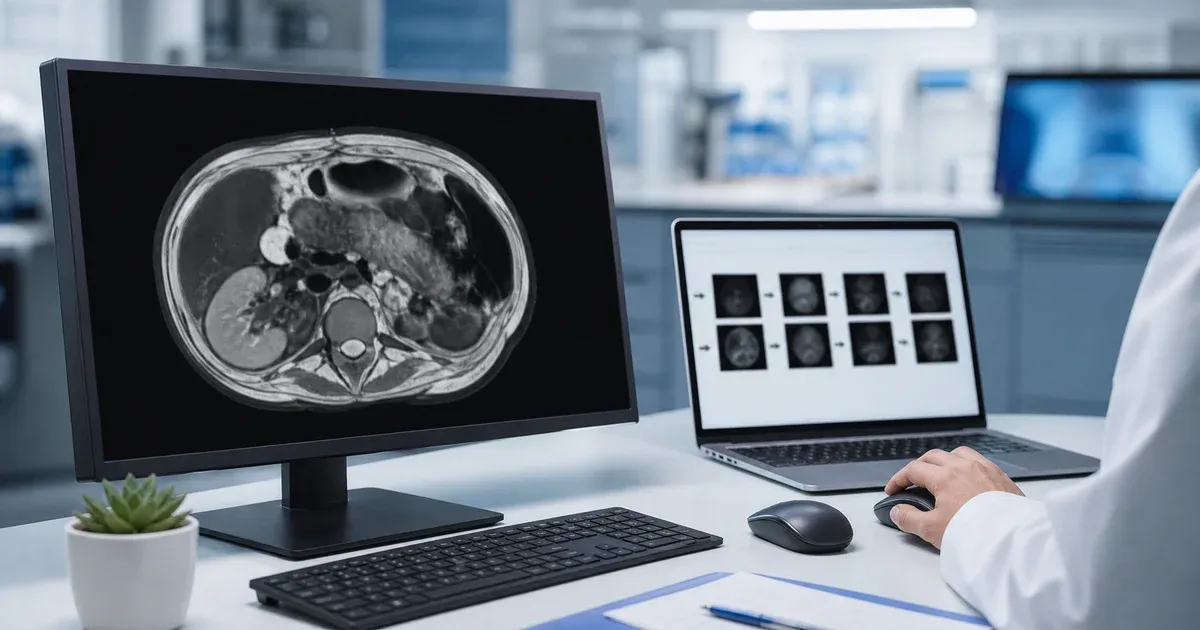
Radiographers, researchers, and clinical IT staff regularly need to pull a JPEG or PNG out of a DICOM file — for a slide, a case report, a teaching file, or a quick email to a colleague. It sounds trivial, like exporting any image. In practice, converting DICOM correctly involves choices about contrast, fidelity, and patient privacy that an ordinary screenshot does not. Done carelessly, the result is either an unreadable image or a privacy incident. This guide walks through doing it properly, entirely in your browser with our DICOM to JPEG/PNG Converter, so no patient data is ever uploaded.
Why DICOM Is Different From a Normal Image
A DICOM file is a structured medical object, not just pixels. It carries hundreds of metadata attributes alongside image data that often has far greater bit depth than a standard picture. A CT slice, for example, records thousands of intensity levels measured in Hounsfield units, while a JPEG can show only 256 gray levels per channel. That mismatch is the root of every conversion decision: you are compressing a wide range of medical information into a narrow visual format, and how you do it determines what the viewer sees.
Window and Level: The Most Important Setting
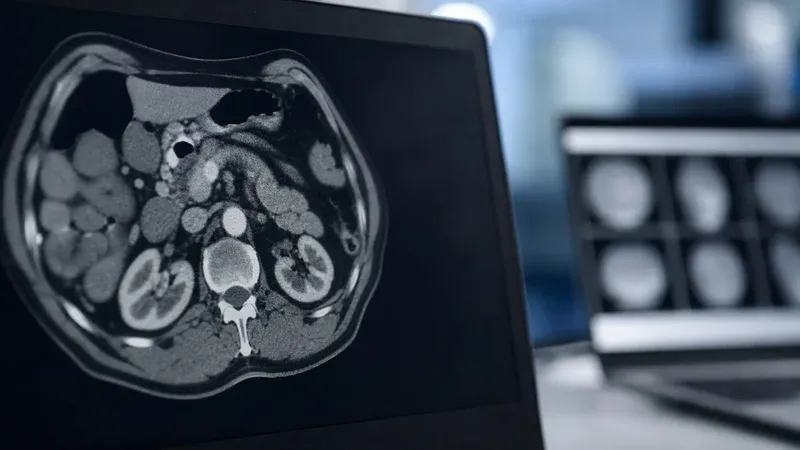
Because a monitor cannot display the full intensity range of a CT or MR image at once, a viewer maps a slice of that range onto the visible gray scale. Two values control this mapping. Window width sets how many intensity values are spread across the available grays, which controls contrast. Window center, or level, sets which intensity sits in the middle, which controls brightness. Radiologists switch between presets — a soft-tissue window, a bone window, a lung window — to examine different structures in the same scan.
When you convert to JPEG or PNG, you bake one window setting into the exported image. The converter loads the file's own suggested values by default, but you should adjust them so the anatomy you want to show is clearly visible before exporting. Export a chest CT with a bone window and the soft tissue vanishes; export with the wrong center and the whole image looks washed out. Getting the window right is the single biggest factor in a usable conversion.
JPEG vs PNG: Which to Choose
The two formats serve different needs. JPEG is lossy: it discards visual information to produce small files, ideal for presentations, emails, and reports where convenience matters. A quality slider lets you trade file size against fidelity. PNG is lossless: it preserves every pixel exactly, which matters when the image will be measured, annotated, or archived as documentation, because compression artifacts could mislead.
A simple rule: choose PNG when accuracy is paramount, and JPEG when file size and sharing convenience win. Remember that neither format preserves the original DICOM bit depth or metadata, so for any diagnostic re-use you must keep the source .dcm file. A converted image is for viewing and communication, not a replacement for the original study.
Handling Multi-Frame Studies
Some DICOM objects pack many frames into one file: ultrasound cine loops, multi-phase CT, and cardiac MR are typical. When converting these, decide whether you need one representative frame or the whole sequence. The converter lets you scrub to a specific frame and export just that one, or render every frame and bundle them into a ZIP archive. Each exported file is named with its frame number so the order is preserved, which matters when the sequence itself carries the clinical meaning, as in a beating-heart loop.
The Privacy Step You Must Not Skip
This is where casual conversion becomes dangerous. Stripping the DICOM wrapper removes the structured metadata tags — patient name, ID, and so on stored as data elements. It does not remove information burned directly into the pixels: a name overlaid on an ultrasound image, an accession number in the corner of a digitized film, or annotations added at the scanner. Those identifiers pass straight through into the JPEG or PNG, fully visible.
Before any converted image leaves a trusted environment, two things must happen. First, run the source files through a de-identification step to clear the metadata; our DICOM De-identifier does this locally. Second, visually inspect each exported image for burned-in text, because no tag-level process can remove pixels. Converting is not anonymizing, and treating it as such is a common cause of accidental disclosure.
Why Local, Browser-Based Conversion Matters
Many online DICOM converters work by uploading your file to their servers. For protected health information, that is a non-starter: you have handed identifiable patient data to a third party, often with vague retention terms. A browser-based converter avoids the problem entirely. The DICOM is parsed, windowed, rendered, and encoded on your own machine; nothing is transmitted. You can verify this in your browser's network tools — no upload request fires. For anyone working under HIPAA, GDPR, or institutional policy, keeping the pipeline local removes a whole category of compliance risk.
A Step-by-Step Workflow
- Open the DICOM to JPEG/PNG Converter and drop in one or more .dcm files.
- Adjust the window center and width until the region of interest is clearly visible.
- Choose JPEG (and a quality level) for sharing, or PNG for lossless documentation.
- If the object is multi-frame, pick the frame you need, or plan to export all frames.
- If the images will be shared externally, de-identify the source first and review each export for burned-in text.
- Download the single image, or export everything as a ZIP.
Real-World Scenarios
Conversion needs vary by role, and the right settings follow from the purpose.
The teaching file. A radiology resident building a case collection wants clear, compact images for slides. JPEG at high quality is ideal: small enough to drop into a presentation, sharp enough to illustrate the finding. The key step is windowing each image to highlight the pathology — a pulmonary nodule needs a lung window, a subtle bleed needs a narrow brain window. Because these images often travel to conferences and shared drives, de-identification first is non-negotiable.
The research dataset. A researcher exporting frames for manual annotation or a downstream model wants lossless PNG to avoid introducing compression artifacts that could bias measurements. Multi-frame cine loops are exported in full, with frame numbers preserved, so temporal order survives. Here the original .dcm files are also retained, because any quantitative re-analysis must go back to the full-bit-depth source.
The quick clinical share. A technician needs to send one representative slice to a referring physician. A single JPEG export, windowed for the relevant anatomy, attached to a secure message, is the fastest path. Even here the burned-in-text check matters: an ultrasound frame may carry the patient's name in the corner, which must be removed or cropped before it leaves the department.
In each case the tool is the same; what changes is the format choice, the windowing, and how rigorously the privacy step is applied. Matching those three to the purpose is the whole craft of converting medical images well.
Comparing the Converter to Alternatives
You could screenshot a DICOM viewer, but a screenshot captures the viewer's interface, scales the image to screen resolution, and loses the exact windowing control — the result is lower quality and harder to reproduce. You could use a desktop application, but that means installing software and, for many tools, still managing files manually. You could use an upload-based web converter, but that transmits protected health information to a third party. A browser-based converter that renders from the actual pixel data, lets you set the window precisely, and never uploads anything combines the fidelity of a desktop tool with the convenience of the web and the privacy of an offline workflow. That combination is why a local, client-side approach has become the sensible default for this task.
Common Mistakes to Avoid
- Exporting with the default window without checking. Always confirm the anatomy you care about is visible; a poor window makes the image useless.
- Using JPEG when measurements matter. Lossy artifacts can subtly alter edges; use PNG for anything quantitative.
- Assuming conversion anonymizes. Burned-in identifiers survive; de-identify and visually review.
- Uploading to an unknown web service. Keep PHI on your device with a local, client-side tool.
- Discarding the original .dcm. The converted image is not a diagnostic substitute; always retain the source.
Conclusion
Converting DICOM to JPEG or PNG is a routine task that rewards a little care. Set the window deliberately, choose the format to match the purpose, handle multi-frame objects intentionally, and treat privacy as a required step rather than an afterthought. Doing it in a private, browser-based tool means you get a clean, faithful image without ever exposing patient data. Start with the DICOM to JPEG/PNG Converter, and pair it with the DICOM Image Viewer when you want to inspect a study before exporting. With a deliberate window, the right format, and a disciplined privacy review, a single DICOM file becomes exactly the clean, shareable image you need — and the patient's data stays exactly where it belongs, on your own device.